How to Connect Your Roku TV Without a Physical Remote
Whether you've misplaced your Roku remote or it's simply not working, controlling your Roku TV without a physical remote is easier than you might think. In this guide, we'll walk you through the simple steps to connect and control your Roku TV using your Android smartphone.
Why You Need a Roku Remote Control App
A Roku remote control app like Roku TV Remote Control offers several advantages:
- No need to buy an expensive replacement remote
- Use your phone as an instant substitute
- Easier text input using your phone's keyboard
- Control from anywhere in your home
- Works even if you've lost your physical remote
Prerequisites
Before you start, make sure you have:
- A Roku TV or Roku streaming device
- An Android smartphone (Android 5.0 or higher)
- Both devices connected to the same WiFi network
- Roku TV Remote Control app installed on your phone
Step-by-Step Guide: Connecting Without a Remote
Step 1: Initial Roku Setup (If First Time)
If your Roku TV is brand new, you'll need a remote to do the initial setup. If you don't have one:
- Check if it came with a physical remote in the box
- Borrow a remote from a friend temporarily
- Most Roku TVs have physical buttons to navigate setup
Step 2: Download Roku TV Remote Control
On your Android phone:
- Open the Google Play Store
- Search for "Roku TV Remote Control" or click here
- Tap Install
- Wait for the app to download and install
- Open the app
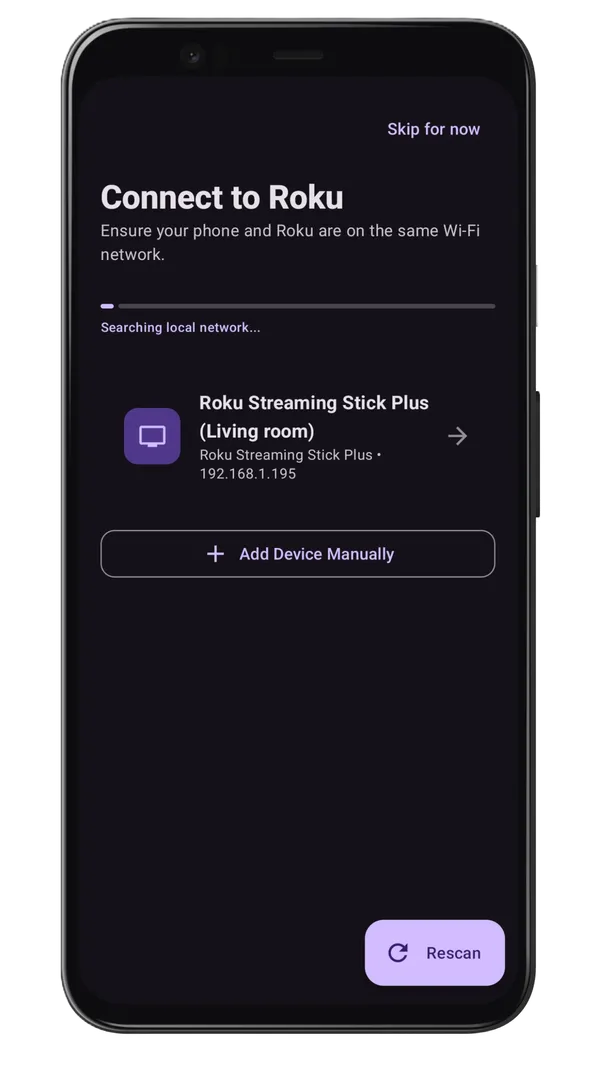
Step 3: Connect to Your Roku Device
Once you open Roku TV Remote Control:
- Make sure your phone and Roku are on the same WiFi network
- The app will automatically search for Roku devices
- Your Roku TV should appear in the device list
- Tap on your Roku device to connect
- A confirmation code may appear - accept the pairing
Step 4: Start Controlling Your Roku TV
Once connected, you can:
- Navigate using the directional pad
- Press OK to select items
- Use the Home button to return to the main menu
- Control volume and mute
- Search and launch apps
- Browse your streaming apps
Troubleshooting Connection Issues
App Won't Find Your Roku Device
Solution:
- Restart both your phone and Roku TV
- Verify both devices are on the same WiFi network
- Make sure your WiFi is stable and strong
- Move closer to your router
- Uninstall and reinstall the app
Connection Keeps Dropping
Solution:
- Restart your WiFi router
- Move closer to your router
- Check for WiFi interference from other devices
- Update your router firmware
Controls Are Slow or Unresponsive
Solution:
- Close other apps running in the background
- Check your WiFi signal strength
- Restart both devices
- Update Roku TV Remote Control to the latest version
Conclusion
Controlling your Roku TV without a physical remote is simple and straightforward with Roku TV Remote Control. Whether you've lost your remote or just prefer using your phone, our app makes it easy to enjoy your Roku TV seamlessly. Download Roku TV Remote Control today and never worry about a lost remote again!
Frequently Asked Questions
Can I setup a new Roku without a physical remote?
It's difficult unless you have a universal IR remote or use ethernet, as remote apps require an existing WiFi connection.
Can my smartphone replace my lost Roku remote?
Yes, a smartphone app can fully replace a Roku remote once connected over the same WiFi.