Lost Your Roku Remote? Here's How to Control Your Roku TV Without It
Losing a Roku remote is frustrating, especially when you just want to watch TV and relax. The good news is that in many cases, you can still fully control your Roku TV using your Android phone.
Whether your remote is lost, broken, has dead batteries, or simply stopped pairing, there are several ways to get back in control quickly.
In this guide, we'll walk through the easiest solutions.
Can You Use Roku Without a Physical Remote?
Yes. Most Roku TVs and Roku streaming devices can be controlled using a smartphone remote app as long as:
- Your Roku device is connected to WiFi
- Your phone is connected to the same WiFi network
Once connected, your phone can function almost exactly like a physical Roku remote.
Use an Android Roku Remote App
The fastest solution is using a Roku remote app on Android.
A good Roku remote app can let you:
- Navigate menus
- Launch streaming apps
- Adjust volume
- Type using your phone keyboard
- Control multiple Roku devices
- Use touchpad or button navigation
This is especially useful if:
- your remote is permanently lost
- your remote buttons stopped working
- your batteries died
- you want faster typing than the physical remote
How to Connect Your Phone to Roku
Step 1 — Connect Your Phone to WiFi
Make sure your Android phone is connected to the same WiFi network as your Roku TV.
This is required for the app to discover your Roku device.
Step 2 — Open the Roku Remote App
Launch the app and allow it to scan for nearby Roku devices.
Most apps will automatically detect:
- Roku TVs
- Roku sticks
- Roku streaming boxes
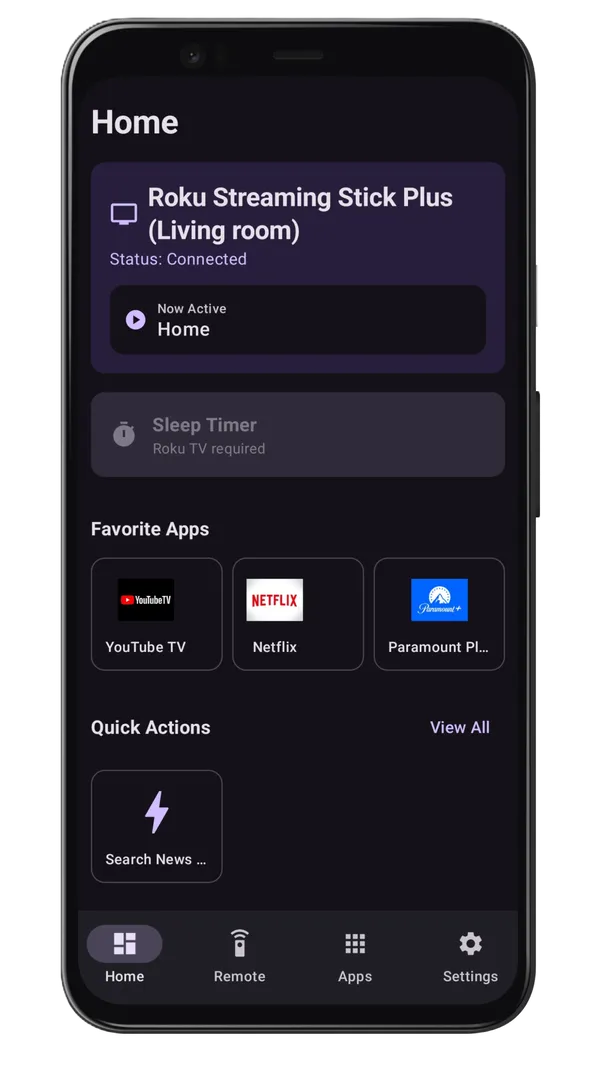
If you don't already have a remote app installed, consider installing our app, Roku TV Remote Control. It provides keyboard input, reliable device discovery, and a dedicated Remote tab (no auto-play ads during control), making it a convenient option as a temporary or permanent replacement.
Step 3 — Select Your Roku Device
Tap your Roku device from the list.
Once connected, your phone becomes a fully functional Roku remote.
What If My Roku Is Not Connected to WiFi?
This is one of the most common problems after losing a remote.
If your Roku device is already disconnected from WiFi, connecting again can be more difficult because Roku normally requires a remote during setup.
Possible solutions include:
- temporarily using another compatible Roku remote
- using Ethernet if your Roku device supports it
- recreating your old WiFi network name and password on your router
- using mobile hotspot tricks in some situations
If your Roku is still connected to WiFi, using an Android remote app is much easier.
Common Reasons Roku Remotes Stop Working
Sometimes the remote is not actually lost — it simply stops functioning correctly.
Common causes include:
Dead Batteries
Always try fresh batteries first.
Pairing Issues
Some Roku remotes need to be re-paired after updates or power interruptions.
WiFi Problems
Roku remote apps require both devices to be on the same network.
Physical Damage
Drops, spills, and worn buttons can eventually damage physical remotes.
Why Many People Prefer Remote Apps
A lot of Roku users eventually prefer smartphone remotes because they offer extra features that physical remotes do not.
Advantages include:
- Faster text typing
- Easier app launching
- Quick switching between Roku devices
- Home screen widgets
- Touch navigation
- Always available on your phone
Many users also like not needing to keep track of another remote.
Tips for Avoiding Future Remote Problems
Here are a few simple tips that help avoid future frustration:
- Keep backup batteries nearby
- Use a Roku remote app as a backup
- Avoid dropping the remote
- Label your remote if you travel often
- Add a home screen widget for faster access
Final Thoughts
Losing a Roku remote does not mean you are locked out of your TV.
In most cases, you can quickly regain control using your Android phone and continue streaming within minutes.
Modern Roku remote apps make it easy to:
- control your TV
- type faster
- launch apps
- navigate menus
- switch devices
without needing the original physical remote.
If your Roku TV is still connected to WiFi, setup is usually very quick and easy.
Frequently Asked Questions
What should I do if I permanently lose my Roku remote?
You can buy a replacement remote, use a universal remote, or simply use a free remote app on your smartphone.
Can I find my lost Roku remote?
Roku Pro remotes have a lost remote finder feature, but standard remotes do not.