Control Your Roku TV
from Your iPhone
Aruk turns an iPhone into a Roku remote. It finds Roku TVs and streaming players on your Wi-Fi, then gives you voice search, a real keyboard, custom shortcuts, and a Home Screen widget — useful when the clicker is lost, the batteries are dead, or you just want to type a title faster.
Works with Roku TVs from
A Roku Remote That Lives on Your iPhone
The same controls as the clicker, plus the things a phone does better: talking, typing, and one-tap shortcuts.
Full Roku Remote
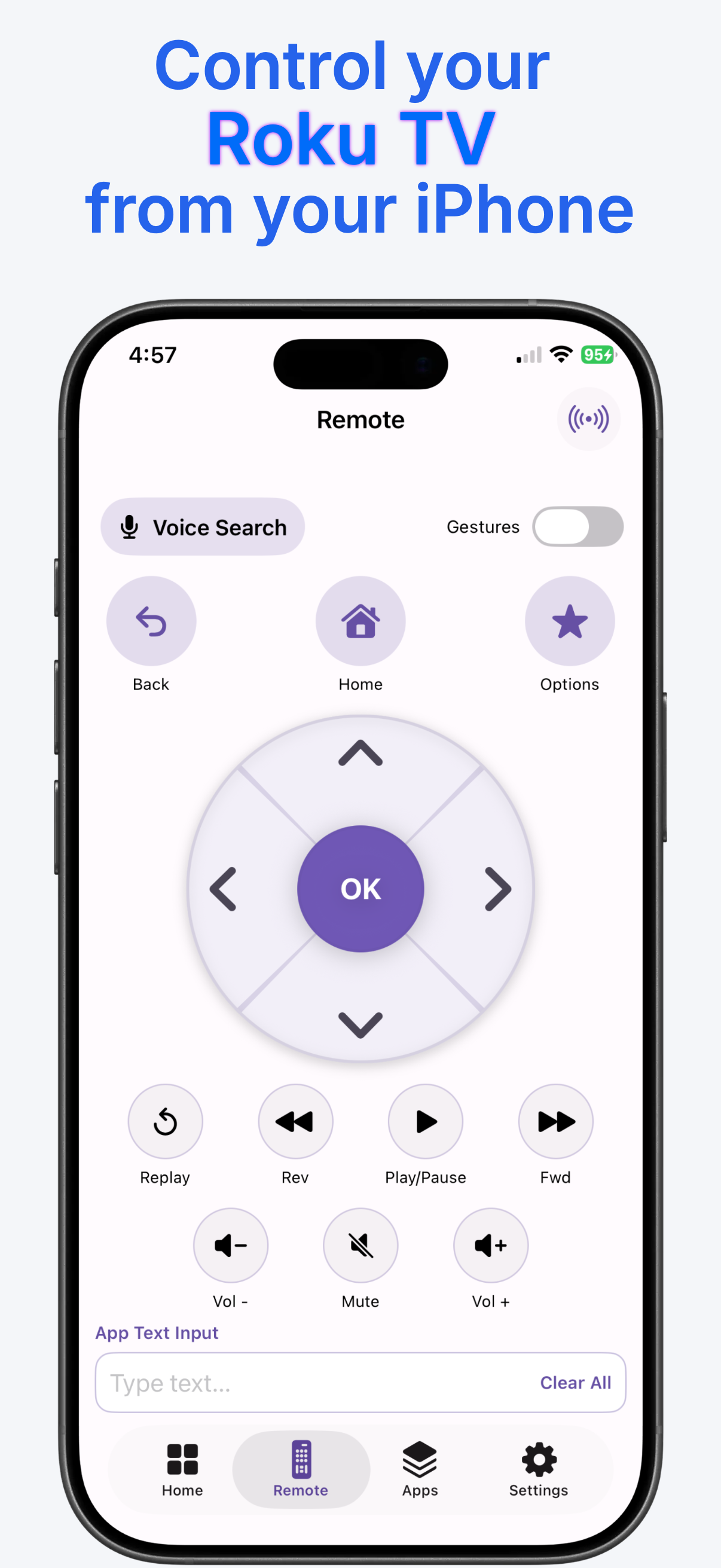
Back, Home, Options, a directional pad, replay, rewind, play/pause, and fast forward. Volume and mute are there for supported Roku TVs. Gestures can be switched on when you would rather swipe.
Finds Your Roku on Wi-Fi
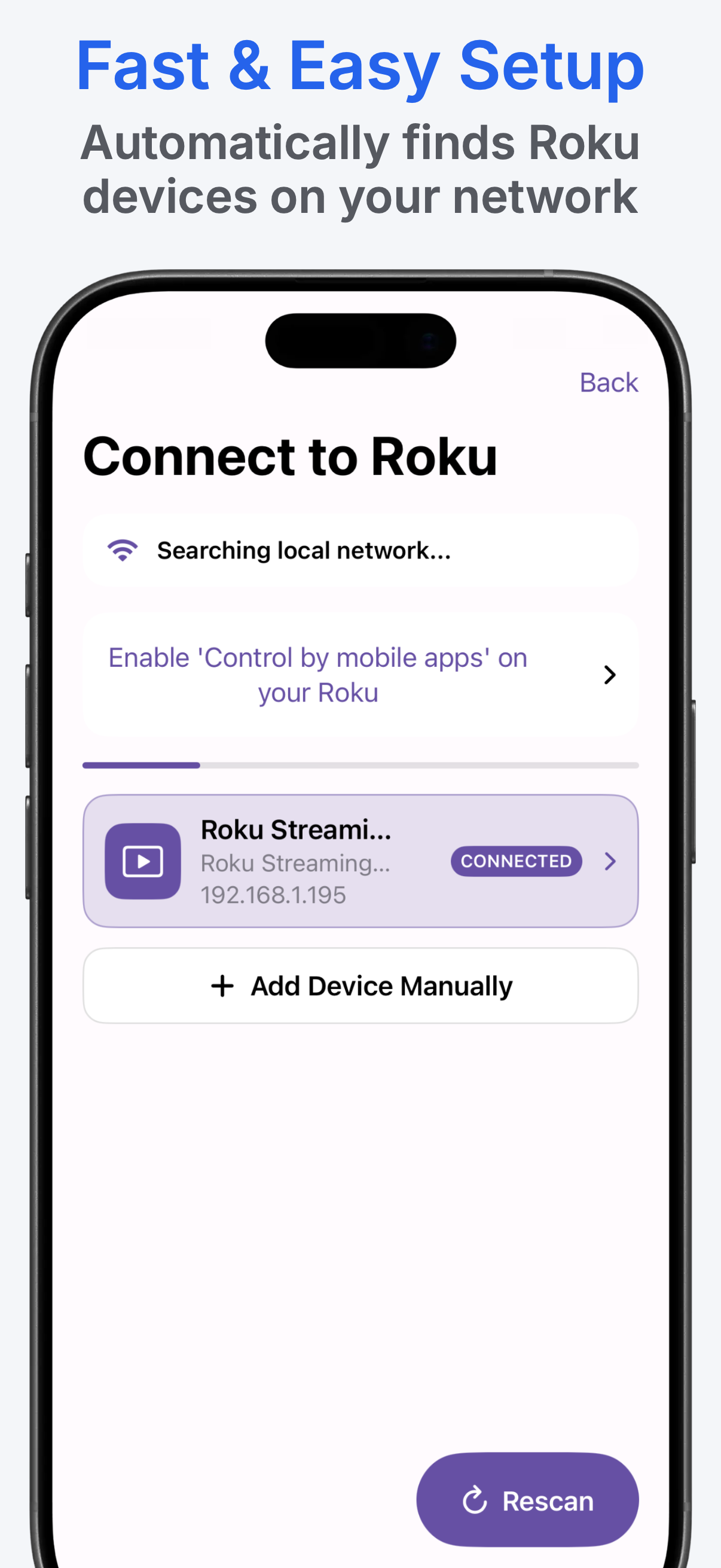
Aruk searches the local network and lists the Roku devices it finds, with a connected state you can see. Tap Rescan, or add a device manually if you already know the address.
Voice Search
Say a show, movie, or app instead of picking out letters on the TV. Voice Search sits at the top of the remote, next to the gesture switch.
Type with the iPhone Keyboard
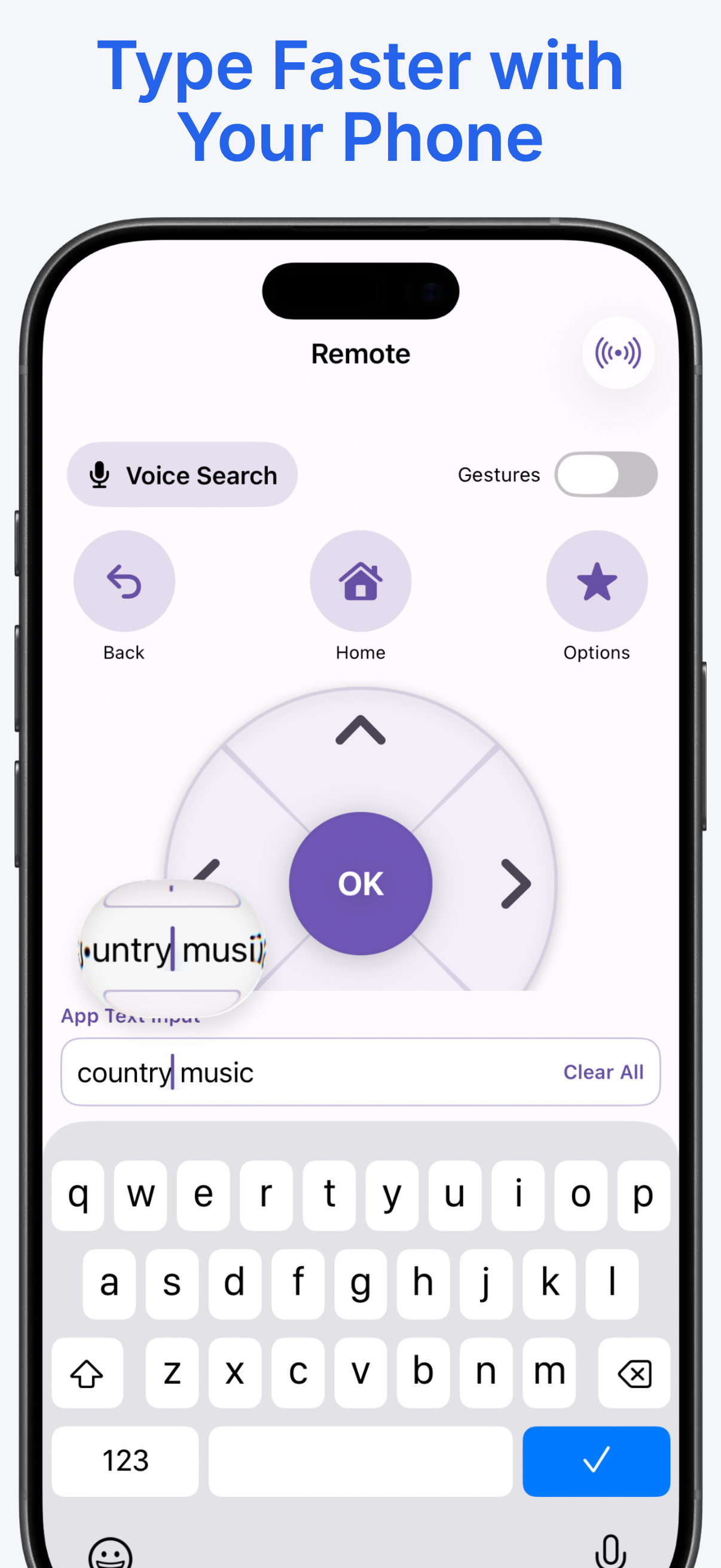
The remote has a text field that sends what you type to the Roku. Searching for “country music” takes a few seconds on the phone keyboard instead of a minute with the directional pad.
Custom Shortcuts
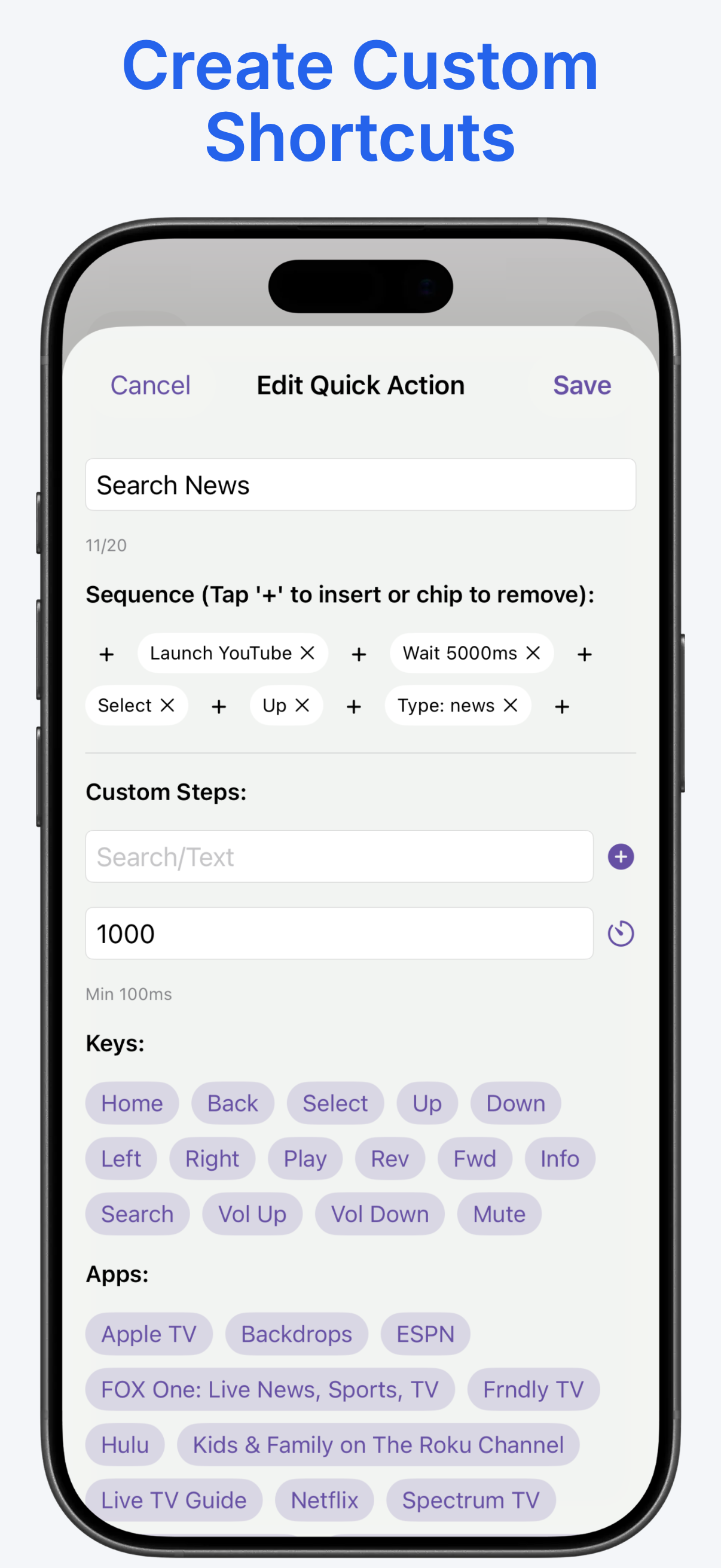
Build a quick action from keys, waits, typed text, and app launches. One example opens YouTube, waits, and types a search — then you run that whole sequence from Home.
Home Screen Widget
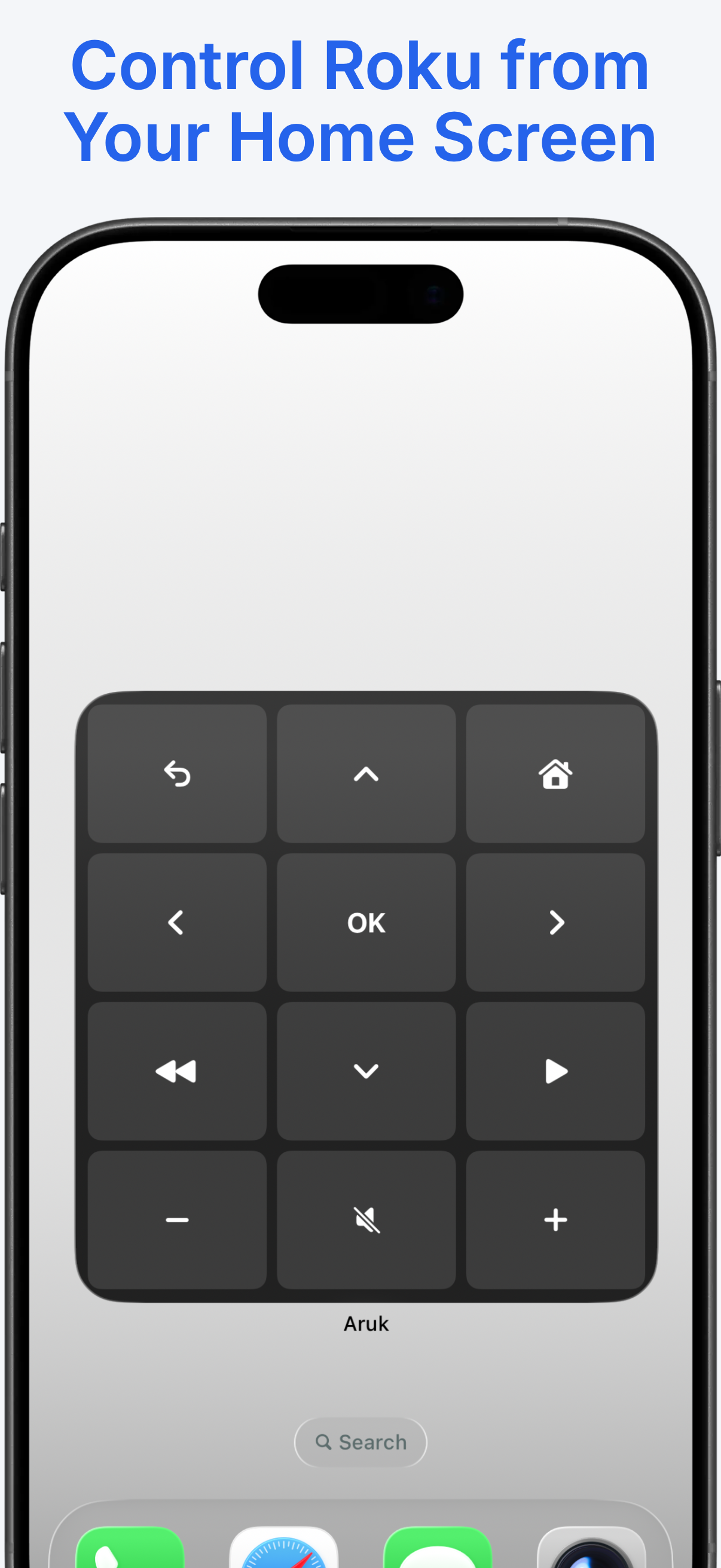
Add the Aruk widget and keep Back, Home, OK, playback, and volume on the iPhone Home Screen. You can change the channel of the evening without unlocking into the full app.
Favorite Apps and What’s Playing
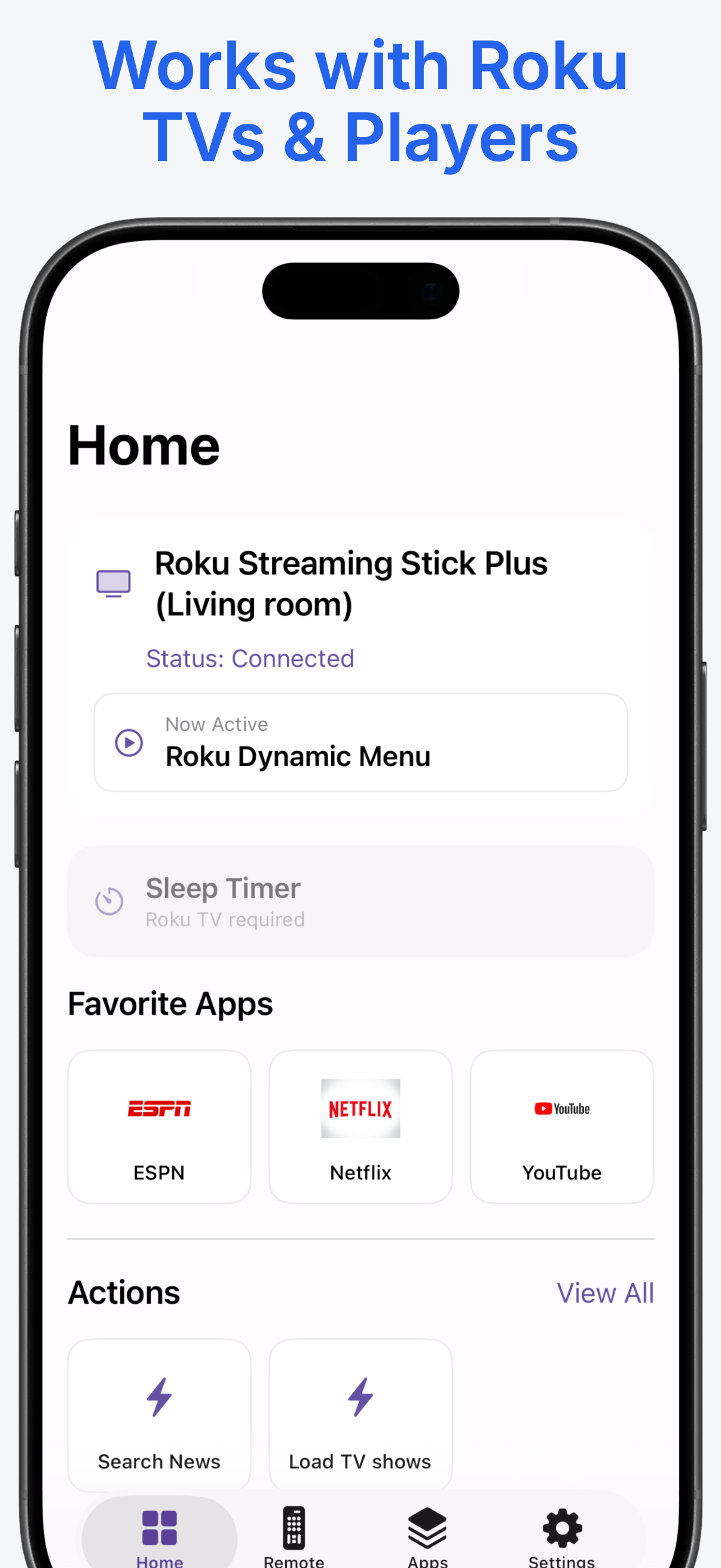
Home shows the connected Roku, what is active, and favorite apps such as Netflix, YouTube, and ESPN. Launch one with a tap instead of hunting through the channel grid.
Sleep Timer on Roku TVs
Set the TV to turn off later from the Home tab. Sleep Timer is for Roku TVs. Streaming sticks and players do not show it.
Stays on Your Wi-Fi
The iPhone talks to the Roku over your local network. Nothing about that control session needs to leave the house. Allow Local Network access when iOS asks, or discovery cannot see the TV.
See the iOS App
Discovery, the remote, Home, the keyboard, shortcuts, and the widget.
Find your Roku
Full remote
Home and favorites
iPhone keyboard
Custom shortcuts
Home Screen widget
Free Roku Remote App for iPhone
A lost Roku remote usually means a trip to the store or a night of using the buttons on the TV. Aruk is a free iPhone app that controls Roku TVs and Roku streaming players over the Wi-Fi you already have. Open it, pick the device it found, and use the remote, the keyboard, or the Home Screen widget. There is an Android version as well if the household is mixed.
How to connect your iPhone to a Roku TV
- Download Aruk: TV Remote Control from the App Store.
- Connect the iPhone and the Roku to the same Wi-Fi network. Guest networks and VPNs often hide local devices.
- On the Roku, set Control by mobile apps to Permissive: Settings › System › Advanced system settings › Control by mobile apps.
- Open Aruk and allow Local Network access when iOS asks.
- Select the Roku that appears. Use Rescan or Add Device Manually if the list stays empty.
- Use the remote, voice search, the keyboard, favorite apps, or a shortcut you created.
Roku TVs and players that work
Aruk is for Roku devices on your network, not a universal remote for every TV brand. That includes Roku TVs and players such as Streaming Stick, Streaming Stick Plus, Express, Premiere, and Ultra, including sets sold by TCL, Hisense, onn., Sharp, Insignia, and Philips. The iPhone and the Roku have to share a network. Sleep Timer is limited to Roku TVs, which is labeled in the app.
If the picture is fine but the Roku itself feels sluggish, a restart is worth trying before you assume the remote app is the problem. The guide Is your Roku TV running slow? walks through a simple restart that does not wipe your apps.
When the physical remote is missing
- Lost Roku remote: use the iPhone once mobile control is set to Permissive.
- Dead batteries: the app does not need the clicker’s batteries. Your phone does.
- Worn buttons: the on-screen pad, playback keys, and volume buttons cover everyday control.
- Slow typing: the iPhone keyboard and Voice Search replace the on-screen letter grid.
Home Screen widget and shortcuts
The widget is the fastest path for people who only need a few keys. It shows a directional pad, Back, Home, playback, and volume under the name Aruk. For longer routines, a custom shortcut can launch an app, wait, move the highlight, and type text. Favorite apps on the Home tab — Netflix, YouTube, ESPN, and whatever else you pin — open with one tap.
Roku Remote for iPhone, Answered
Does Aruk work as a Roku remote on iPhone?
Yes. Aruk: TV Remote Control for iPhone controls Roku TVs and Roku streaming players that are on the same Wi-Fi network. It includes a directional pad, playback and volume controls, voice search, an iPhone keyboard, favorite apps, custom shortcuts, and a Home Screen widget.
How do I connect my iPhone to a Roku TV?
Install Aruk, join the same Wi-Fi network as your Roku, and set Control by mobile apps to Permissive under Settings › System › Advanced system settings. Allow Local Network access when iOS asks, then select the Roku that Aruk finds. You can also tap Rescan or add a device manually.
Why does iPhone ask for Local Network access?
iOS requires permission before an app can discover devices on your Wi-Fi. Allow Local Network access so Aruk can find your Roku. You can change this later in the iPhone Settings app under Privacy & Security › Local Network.
Can I use this iPhone app if I lost my Roku remote?
Yes, after Control by mobile apps is set to Permissive. Aruk then covers navigation, playback, voice search, and typing. Volume controls work on supported Roku TVs. If mobile control is still Disabled or Limited, use the buttons on the TV or player once to change that setting.
Which Roku devices work with the iPhone app?
Aruk works with Roku TVs and Roku streaming players on the same Wi-Fi network, including Streaming Stick, Streaming Stick Plus, Express, Premiere, and Ultra, and Roku TVs from TCL, Hisense, onn., Sharp, Insignia, and Philips. Sleep Timer requires a Roku TV.
Does the iPhone app include a Home Screen widget?
Yes. The Aruk widget puts Back, Home, the directional pad, playback, and volume on your iPhone Home Screen so you can control the Roku without opening the app.
Can I type and search on Roku from my iPhone?
Yes. The remote screen has a text field that sends what you type to the Roku, and Voice Search lets you speak a title instead of spelling it with the directional pad.
Is Aruk affiliated with Roku?
No. Aruk is an independent app and is not affiliated with, endorsed by, or sponsored by Roku, Inc. Roku is a trademark of Roku, Inc.
Still stuck connecting? Contact us or read the full FAQ.
Put a Roku Remote on Your iPhone
Download Aruk: TV Remote Control from the App Store, then connect to the Roku on your Wi-Fi.